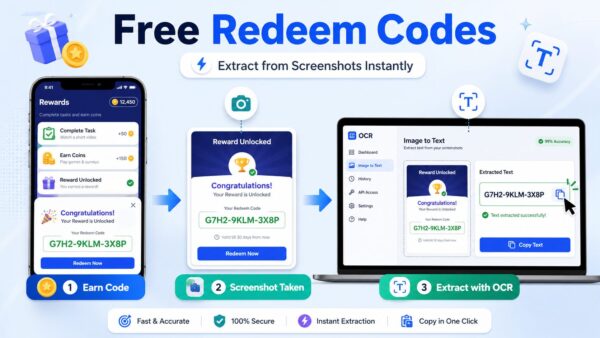
You open a rewards app after finishing a few tasks and you finally see a redeem code on your screen. The screen shows the code inside a reward card or popup, and you try to copy it, but there is no copy option, so you take a screenshot and keep it for later use.
This is where the real problem starts because typing the code manually takes time and even a small mistake can make the code invalid. Many users face this again and again, and that is why OCR tools have become part of the same workflow where you extract text directly from screenshots instead of typing everything again.
What Actually Happens When You Earn Redeem Codes
Most reward apps in India do not always provide codes in clean selectable text. The code can appear inside an image, inside an email screenshot, or inside a reward confirmation screen that disappears quickly.
| Source of Code | Format | Problem |
| App rewards | Image or locked text | Copy option disabled |
| Email rewards | Screenshot format | Cannot select text |
| Survey apps | Popup image | Disappears quickly |
| Gaming rewards | Screenshot | Typing mistakes happen |
When you keep switching between apps to type the code, it slows down the whole process. The issue becomes bigger when you have multiple codes saved as screenshots and you try to manage them later.
Why Screenshots Create Problems While Using Redeem Codes
Screenshots look easy at first, but they create small issues that keep repeating in every redemption process.
- Copy option is missing in most reward screens
- Codes expire while you try to type them
- Manual typing creates mistakes in characters
- Managing many codes becomes confusing over time
Even if you are careful, similar characters like O and 0 or I and 1 can confuse you. This creates frustration when the code does not work and you have to recheck everything again.
How OCR Solves This Problem in Real Usage
When you upload a screenshot into an OCR tool, the tool scans the image and detects each character from the code. After processing, the text appears on the screen in an editable format where you can copy it directly.
You do not have to type anything manually, and this reduces the chances of mistakes. In some cases, if the screenshot is not clear, the tool may misread one or two characters, so you still need to check the output once before using the code.
This is why image clarity matters a lot when you depend on OCR tools for extracting redeem codes.
Top Free Redeem Code Apps in India
1. Google Opinion Rewards
This app gives rewards when you answer short surveys. The credits are added directly to your account and can be used in Google Play without needing a separate code in many cases.
2. TaskBucks
TaskBucks allows users to earn rewards by installing apps and completing small tasks. The rewards can be used for recharge or other benefits based on available options.
3. Roz Dhan
Roz Dhan gives coins for reading news and doing daily activities inside the app. These coins can be converted into rewards over time.
4. FreeGiftZone
FreeGiftZone works on an activity based earning system where users complete tasks like watching content, playing games, or finishing offers. These activities generate coins, and the coins can be converted into rewards such as gift cards.
Many users look for updated options like free google play redeem codes inside the platform, and in many cases, the reward confirmation appears on screen where users take a screenshot to save it.
Later, when they want to use the code, they depend on OCR tools to extract the text instead of typing everything manually.
5. Pocket Money
Pocket Money provides rewards through offers, referrals, and app installations. The earned value can be used as cashback or converted into usable rewards.
6. CashKaro
CashKaro gives cashback when users shop through its platform. The cashback can later be converted into gift vouchers or bank transfers depending on user preference.
7. Swagbucks
Swagbucks offers rewards for surveys, watching videos, and completing small online tasks. The points earned can be redeemed for gift cards.
8. Poll Pay
Poll Pay focuses on survey based rewards and gives payouts after completing surveys. Users can convert rewards into vouchers or direct payments.
Where OCR Fits in These Apps Workflow
When you look at the full journey, the connection becomes very clear. A user completes tasks inside a reward app, earns a reward, and sees the redeem code on screen.
The user takes a screenshot to save it because the code is not always copyable. After that, the screenshot is uploaded into an OCR tool where the text is extracted and shown in editable form.
The user copies the code from the OCR output and pastes it into the redemption page. Without OCR, this step depends completely on manual typing, which increases errors and slows down the process.
Best OCR Tools to Extract Redeem Codes from Screenshots
1. Text Extraction Tool
When you use a tool that can extract text from images or PDFs, the workflow becomes faster because you can upload any screenshot and get editable text in seconds. A tool like extract text from PDF using OCR allows you to convert screenshots or scanned files into clean text that you can copy and use immediately.
This becomes very useful when you have multiple screenshots and you want to extract all codes without typing them one by one.
2. Google Lens
Google Lens allows you to scan or upload images and extract text directly. It works fast, but sometimes misses characters when the image quality is low.
3. Adobe Scan
Adobe Scan converts images into scanned documents and extracts text from them. This is useful when the screenshot has structured layout or multiple lines of text.
4. Microsoft OneNote
OneNote allows you to insert images and copy text from them. This works well when you store screenshots inside notes and want to extract text later.
Step by Step Real Workflow
A user completes a task inside a reward app and earns a redeem code. The code appears inside a reward card, so the user takes a screenshot to save it.
After that, the user opens an OCR tool and uploads the screenshot. The tool scans the image and shows the extracted text on screen.
The user copies the code from the output and pastes it into the redemption page. If the code does not work, the user checks for small mistakes like similar characters or missing parts.
This entire process becomes smooth once you understand how to combine reward apps with OCR tools in one workflow.
Tips to Avoid Errors While Extracting Codes
- Keep the screenshot clear and focused on the code
- Crop only the code area before uploading the image
- Check similar looking characters carefully before use
- Save all extracted codes in one place for easy access
These small steps reduce errors and help you use codes without repeating the same process again.
Saving and Managing Multiple Redeem Codes
When you start collecting multiple redeem codes, managing them becomes another task. Many users store codes inside notes, while others keep them inside text files for easy access.
Some users convert all collected codes into a single PDF so that everything stays organised in one place. This makes it easier to track used and unused codes without confusion.
When codes are saved properly, the whole redemption process becomes faster because you do not need to search through screenshots again.
FAQs
Can OCR read redeem codes correctly?
OCR tools can read most codes correctly when the image is clear and text is visible. Errors usually happen in low quality images.
Is it safe to use OCR tools for codes?
Trusted OCR tools process images securely and do not store sensitive data if used properly.
Why some codes are not detected properly?
This happens when the screenshot is blurry or when fonts are too complex for the tool to recognise correctly.
Can I extract codes from scanned PDFs?
OCR tools are designed to read scanned files and convert them into editable text if the scan quality is good.
Conclusion
The process of earning redeem codes and using them becomes easier when you combine reward apps with OCR tools. Instead of typing codes manually, you can extract them directly from screenshots and use them without errors.