Apple Music boasts a library of over 100 million songs, but there is a catch that frustrates millions of users: You don’t actually own the files. Even if you pay for a subscription, every song you save is locked inside the Apple Music ecosystem with DRM (Digital Rights Management) protection.
What happens if you cancel your subscription? What if you want to move your playlist to a non-Apple device? You lose access.
In this guide, we will show you the only reliable method to permanently download Apple Music songs to a PC as standard audio files (MP3, FLAC, AIFF, WAV, etc.) using the professional tool—ViWizard Apple Music Converter.
Why Can’t You Just “Download” Apple Music on PC?
When you use the official Apple Music app or iTunes for Windows, the “download” button is a trap. It does not save music to your hard drive as usable files. Instead, it caches them locally with DRM encryption.
These cached files expire the moment your subscription ends. Furthermore, you cannot:
- Copy them to a USB drive.
- Edit them in DJ software.
- Upload them to a Plex server or smart speaker (like Alexa or Google Home).
- Burn them to a CD.
To truly download Apple Music songs to your PC, you must remove the DRM and convert the audio format.
Enter ViWizard Apple Music Converter: The Professional Solution
ViWizard Apple Music Converter (one of the best downloader for Apple Music) is a dedicated Windows (and Mac) application designed specifically to bypass Apple’s DRM protection and convert streaming tracks into universally playable formats. Unlike screen recorders or virtual audio cables, ViWizard works at 30x faster speed while retaining 100% of the original audio quality.
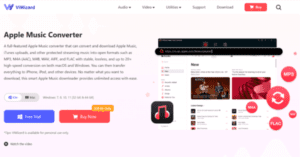
Here is the step-by-step process to convert and download your Apple Music library to your PC permanently.
Step 1: Install ViWizard Apple Music Converter on Your PC
Download the official setup file from the ViWizard website. Run the installer and follow the on-screen instructions. The software is lightweight and works on Windows 10/11.
Note: ViWizard integrates directly with the built-in Apple Music web player, so you don’t need to install any extra plugins.
Step 2: Add Apple Music Songs to the Converter
Launch ViWizard. You will see a built-in web browser interface for Apple Music.
- Log in to your Apple Music account.
- Navigate to the playlist, album, or song you want to download.
- Simply drag and drop the selected songs from the Apple Music window into the ViWizard conversion panel.
Alternatively, you can copy and paste the track link directly into the converter.
Step 3: Choose Your Output Format (MP3 Recommended)
This is where ViWizard shines. To ensure your songs play on every device (Windows PC, Android, iPhone, PS5, car stereo), you need a standard format.
- Click the Output Format button (usually at the bottom left).
- Select MP3 (Most compatible), M4A, FLAC (Lossless), or WAV.
- Adjust the Bitrate (320kbps is recommended for CD-quality sound) and Sample Rate (44.1 kHz).
Step 4: Organize Your Output Library
Before converting, set up your folder structure. ViWizard automatically keeps your ID3 tags (Artist, Album, Cover Art, Genre). You can choose to export files by:
- Artist/Album folders
- Playlist names
- Custom naming rules (e.g., Track Number – Artist – Song Title)
Step 5: Start Converting and Downloading to PC
Click the “Convert” button. ViWizard will process your songs at up to 30x speed. A 3-minute pop song will be ready in about 6 seconds.
Once finished, click the “History” tab or “Converted” folder. Here, you will find your DRM-free Apple Music songs sitting safely on your PC hard drive.
Frequently Asked Questions for ViWizard Apple Music Converter
Q: Does this work with an Apple Music subscription?
A: Yes. ViWizard works with Apple Music Individual, Family, and Student plans, as well as iTunes Store purchases.
Q: Will the quality drop after conversion?
A: No. ViWizard uses advanced decoding technology to output audio in a lossless manner. A 256kbps AAC file from Apple Music can be converted to a 320kbps MP3 without quality loss.
Q: Can I play these songs forever even if I cancel Apple Music?
A: Absolutely. Once the file is saved as an MP3 on your PC, it is yours forever. Canceling your subscription will not delete these files.
Conclusion: Take Control of Your Music Library
Apple Music is a great streaming service, but it holds your music hostage. By using ViWizard Apple Music Converter, you can finally download Apple Music songs to your PC as permanent, portable MP3 files.
Whether you want to backup your library, listen offline on a DAP (Digital Audio Player), or simply stop paying a monthly fee to access your favorite albums, ViWizard gives you the freedom to do so.
Ready to convert your first track? Download ViWizard today and enjoy your Apple Music library anywhere, forever.